
Articles
Type and Size of Images
These days, almost all output from digital cameras is in JPG files. These are the sort of files that we are going to consider.
To find out how big your picture is, either open Windows Explorer, or click My Computer, and navigate to the folder that contains your picture.
Your "File Manager" will be set to display files in either List mode or Icon mode.
In either case, just hover the mouse over the icon for the file:-
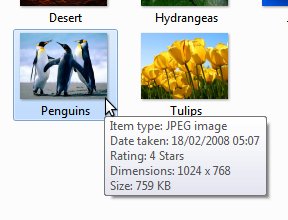
This is a screenshot of just part of the screen.
Hovering the mouse over the file icon causes the properties to be displayed. In particular, we see that for this example:
The file is a JPEG (JPG) type.
Width is 1024 pixels
Height is 768 pixels
Size of the file is 759k bytes
So what does that mean, is it good or bad, and what about it anyway?
Well, the first thing is that you now know how to look up picture dimensions and file sizes... but yes, that's a reasonably small picture.
1024 pixels (dots) in width is coincidentally the whole width of this page, including the menu strip. It's about twice the width that we want it to be for the Discussion Board. The Discussion Board has a maximum viewing area for attached pictures of 540 x 540 pixels.
Do we need to worry?
In that case, and similar, not at all.
As we shall see in the next section, we have recently added some rather clever code to the site to take care of the size of uploaded pictures, but as we shall also see, there is a limit to what it can do.
Just as a guide-line, anything up to 540 x 540 pixels is fine - just upload and insert it.
Anything greater than 540 x 540, and up to about 3264 x 2448 (That's the max. output of an 8 Megapixel camera) can be re-sized automatically by our site software as it is uploaded, but as the size increases, the upload takes longer - it could take minutes for each such picture.
Therefore, for larger files straight from your camera, you might like to consider using the resizing methods that we suggest in the following sections anyway.